- Registration through Schedule Planner
- Registration through myUAB
- Registration through BlazerNET
Registration through Schedule Planner
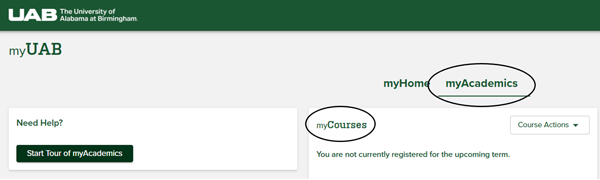
Go to myUAB and select the myAcademics tab from your home page.

Select myAcademics and you will see a myCourses area.
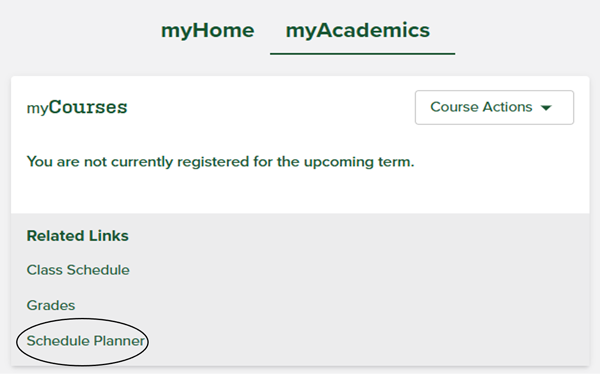
From myCourses, choose the link to Schedule Planner at the bottom of the channel under “Related Links.”
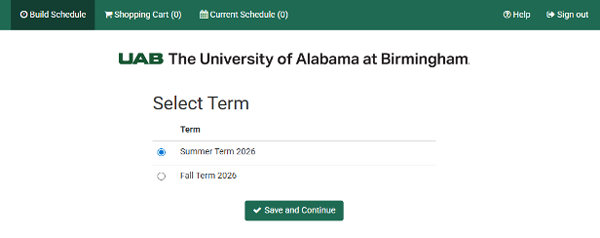
Selecting this will send you to Schedule Planner, which does not change.
Registration through myUAB
Go to my.uab.edu
Select myAcademics. You will see the myCourses channel.
Select “Add/Drop/Withdrawal from Courses” from the course actions menu.
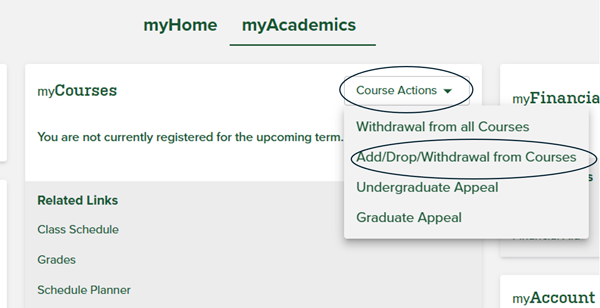
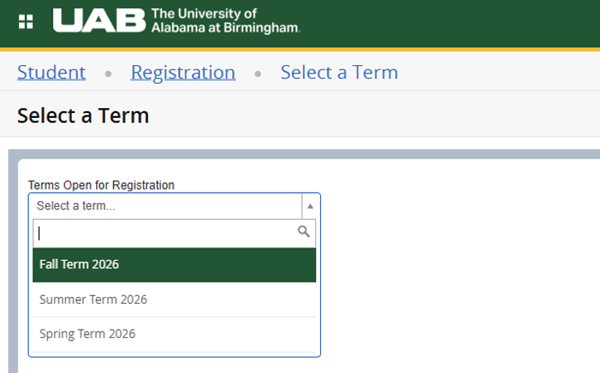
This will open the Registration tab and ask you to select your term for registration.
Find Classes
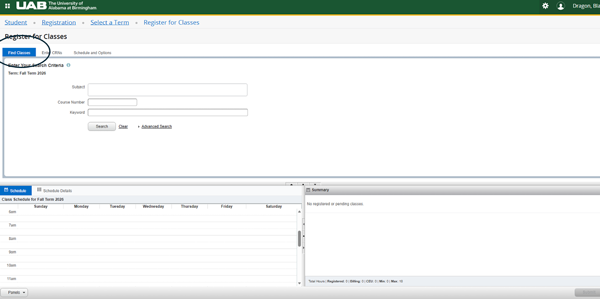
Selecting a term will take you to the Register for Classes page, where you will be able to search for classes on the Find Classes tab.
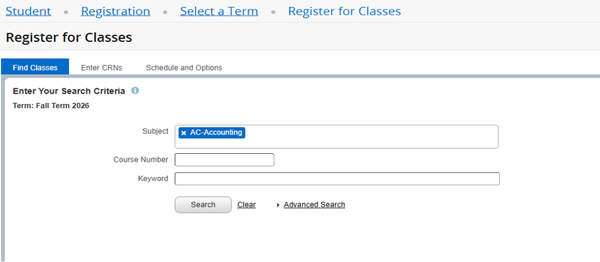
You can search for classes by Subject/Course Number or with Advanced Search.
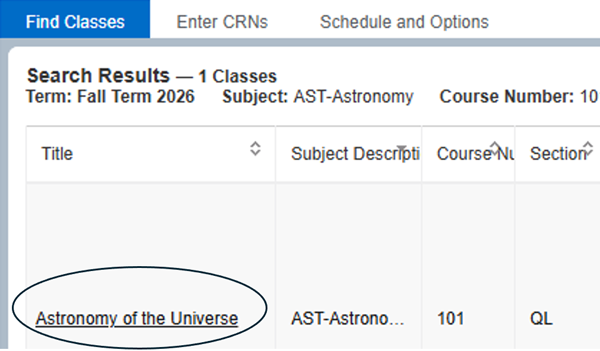
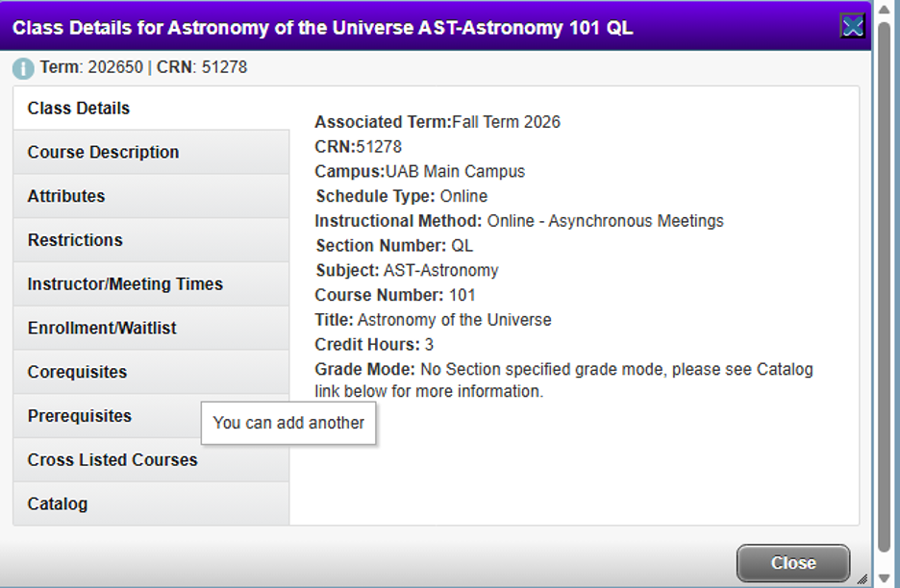
Clicking on the course title will show additional information about the course, including prerequisite and corequisite information.
Add Classes
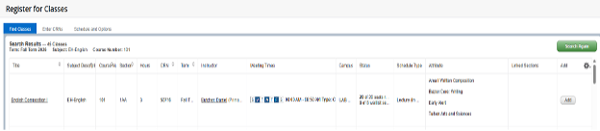
When you find the course you want, click the Add button in the far right of the listing.
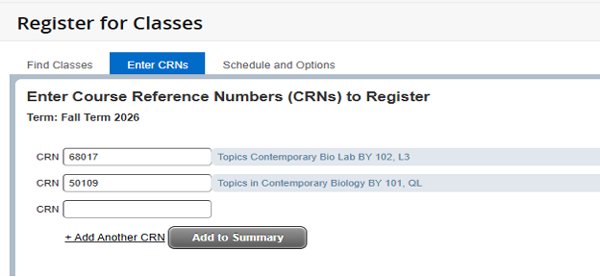
If you know the CRN of the class, you can enter those on the ‘Enter CRNs’ tab and click the Add to Summary button.
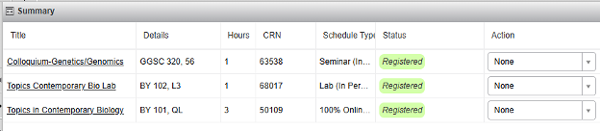
As you select classes, they will be added to your Summary section in the bottom right of the registration page.
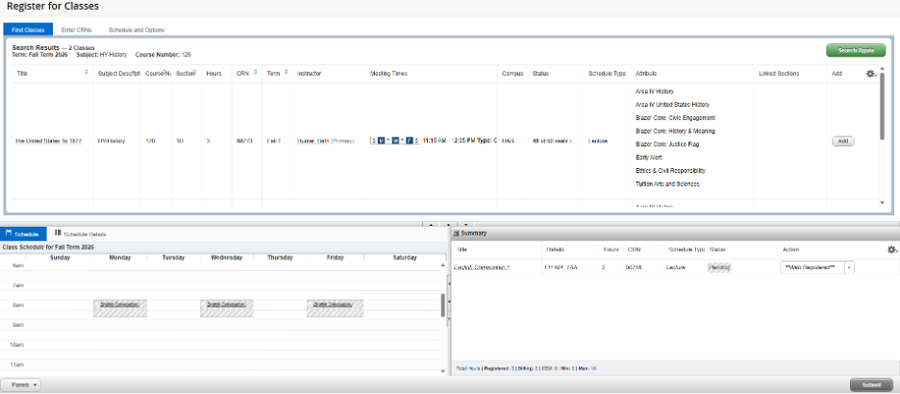
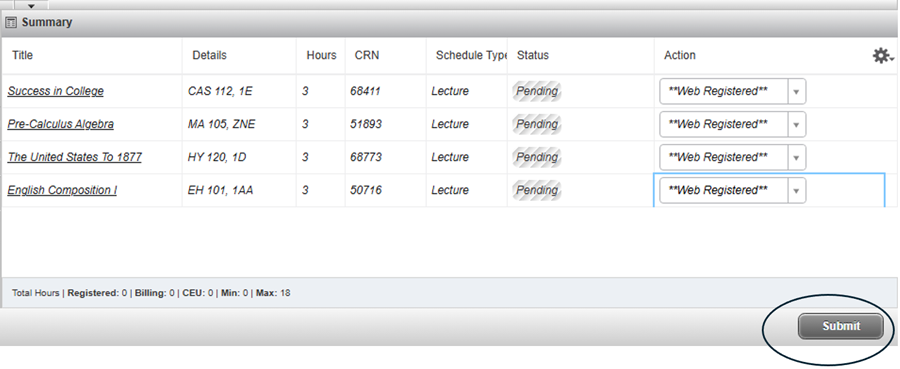
As you add courses they will be in a Pending status. Click Submit to register.
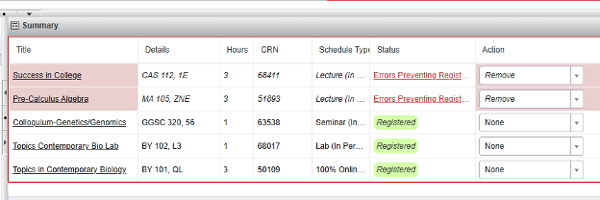
Successful registrations will appear in green noting “Registered.” Errors will show in red with a status noting “Errors Preventing Registration.”
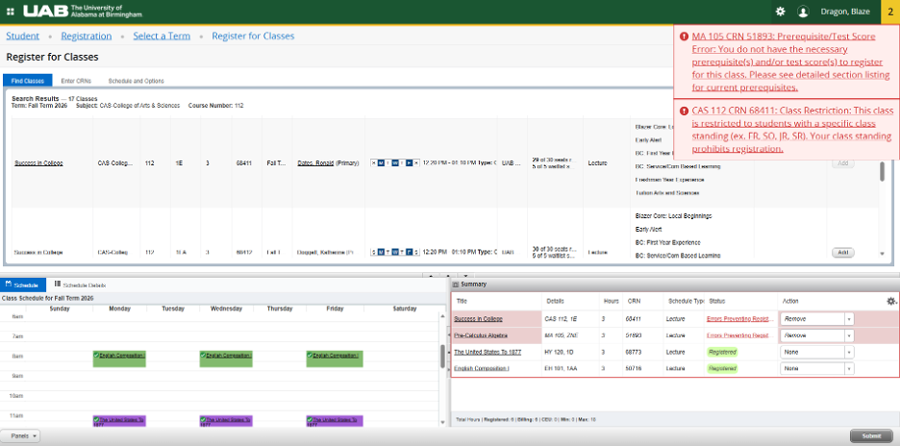
For unsuccessful registrations, you will also receive an error message in the upper right corner of the registration application.
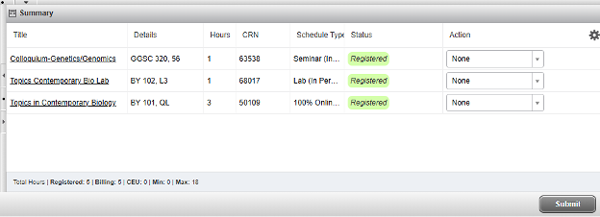
Click Submit again and it will remove any courses with errors.
Once you are registered, any time conflicts will show in schedule searches.

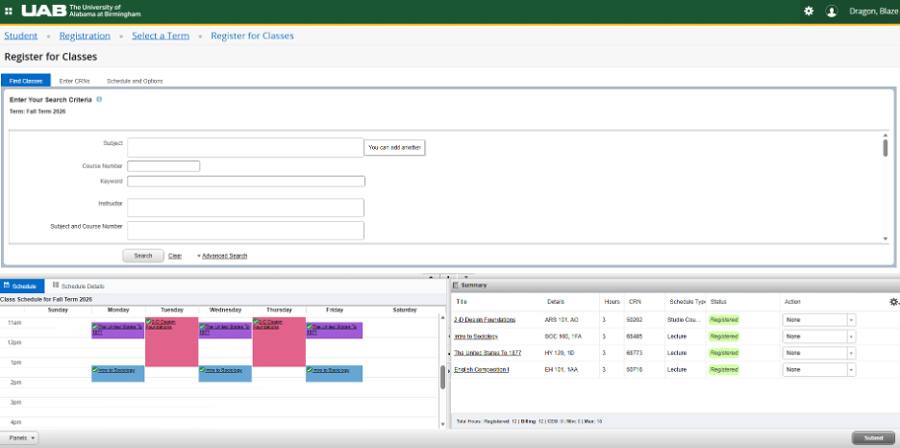
When you have successfully completed your registration you will see a visual schedule and the summary.
To change the credit hours on a variable credit hour course, you will click the Schedule and Options tab and then click the underlined credit hour.
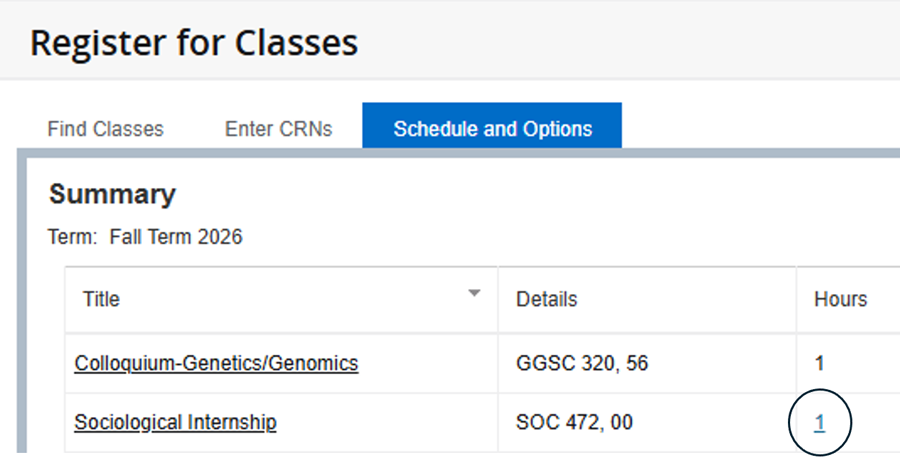
Clicking the underlined credit hour opens a text box to adjust the hours.

Drop Classes
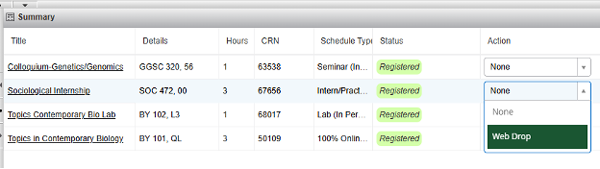
To drop a course, go to Summary, change the Action in the dropdown menu to "web drop," and click Submit
After you submit the action, the course will show as a Deleted status and be greyed out.
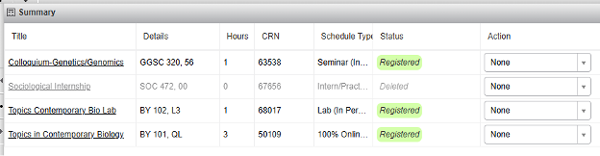
If you click Submit again, the course will be completely removed from the Summary.
Withdrawals is the same process as drop only selecting withdraw instead of drop.
Waitlist
If the course is full but offers a waitlist, you may select Waitlist from the drop-down menu.
When you receive notification that your waitlist seat is available, log back in to registration and select Register and Submit.
Registration through BlazerNET
To register for courses, please sign in to BlazerNET opens a new website.
- Once logged in to BlazerNET, click on the "Registration" link on the green ribbon.
- On the Registration menu, click the "Add, Drop, or Withdraw from Classes" link.
- From there your registration experience will be the same following find classes, add and drop above.
If you receive a Registration Error Message, please see the list below of common registration errors and solutions:
- RAC: A Registration Access Code (RAC) is required for your account. This is a 6-digit number given to you by your advisor or graduate program director.
- COREQ: Course has a corequisite. The CRN of the required corequisite should follow the COREQ error message. Please submit the courses simultaneously.
- PREQ/TEST SCORE: Course has a prerequisite or test placement requirement. The CRN or title of the required prerequisite should follow the PREQ error message. See your advisor for permission.
- IME CONFLICT: Course has a time conflict with another course already added to your schedule.
- CLOSED SECTION: There are no more seats available in the course.
- NEED INSTRUCTOR PERMISSION: Permission of the instructor is required to take this course. Please contact instructor for an online override.
- LEVEL RESTRICTION: Your classification level is invalid for this course. Contact the department or instructor for online permission.
- HOLDS: Holds are on your account which restrict you from registering. Please scroll down until you see a “View Holds” icon. This icon will show your specific holds. Please see the department listed to remove the hold.
If you have any additional problems with registration, please call (205) 934-4300 or stop by One Stop Student Services (Hill Student Center, suite 103) for assistance.