The Kaltura Player is the front-end interface used to view captured videos and/or presentations from Kaltura Capture Applications. It provides you with multiple interactive viewing options, such as Picture-in-Picture, Side-by-Side, and other displays. Watch the tutorial or follow the instructions below.
Note for users of screen readers: Letters in parentheses in the instructions below refer to corresponding areas on example images. If you have any questions about these instructions, contact the Office of Learning Technologies for assistance opens a new website.
Interactive Viewing Guide
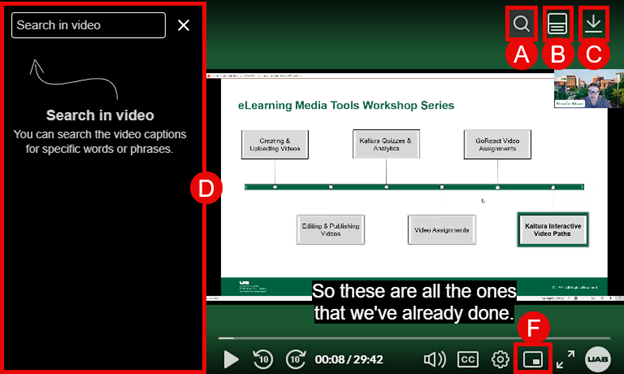
- Search Icon — Allows you to open the search functionality. You can quickly look for specific words or phrases spoken in the video.
- Navigation Panel (Chapters/Slides Icon) — Opens the navigation menu where you can view chapters and slides. This helps you easily jump to different sections of the video.
- Download Option —Enables you to download the video or related content (if permitted) for offline viewing.
- Search Panel — Displays the search interface. You can type keywords to find specific moments in the video based on captions.
- Picture in Picture —Lets you watch the video in a small floating window while using other applications. The mini player stays on screen, so you can continue viewing without interrupting playback and move it to a convenient position.
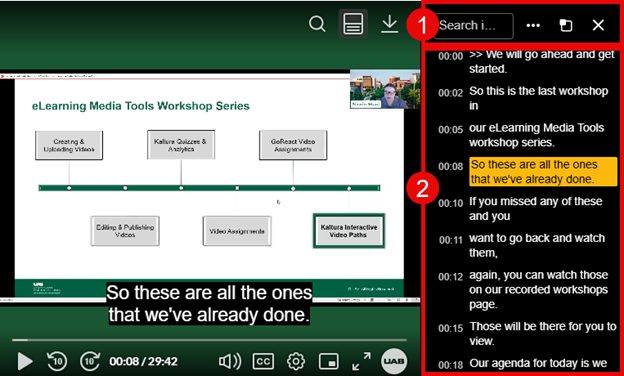
- B1. Search Bar (Inline Search Access) — Provides quick access to the search feature directly from the top menu. Start typing to get auto-suggestions and faster results.
- B2. Transcript Panel —Shows the full transcript of the video with timestamps. You can click on any line in the transcript to jump directly to that moment in the video.