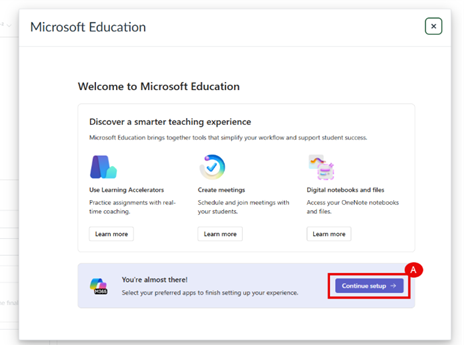
Course Navigation
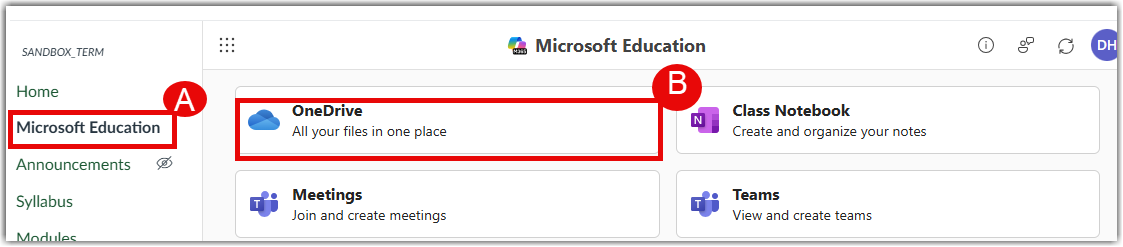
Microsoft Education adds a link to Microsoft Education → OneDrive in the Course Navigation menu. This link, most commonly named OneDrive,allows users to access Office 365,allows users to access Office 365 through OneDrive. After logging in to their user accounts, users can view all Office 365 files displayed in their OneDrive account.
Cloud Assignments
A Microsoft Office 365 assignment in Canvas can be created in two ways.
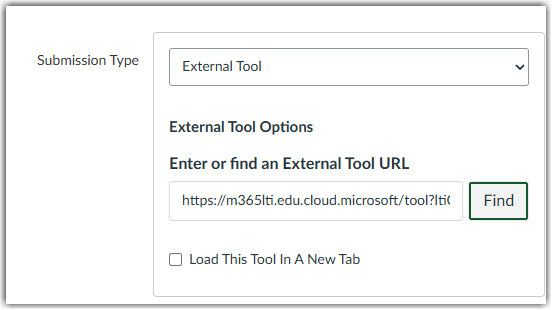
One is as an external tool submission, which uses the Microsoft Education to let students edit and submit files from OneDrive. Instructors can create an online embedded assignment using Microsoft Education LTI as an external tool. When using the Microsoft Education 365 external tool, this assignment type creates a view-only template of the assignment file for students. Supported file types include Word, PowerPoint, and Excel. Please see our guide for more information on creating this assignment type.
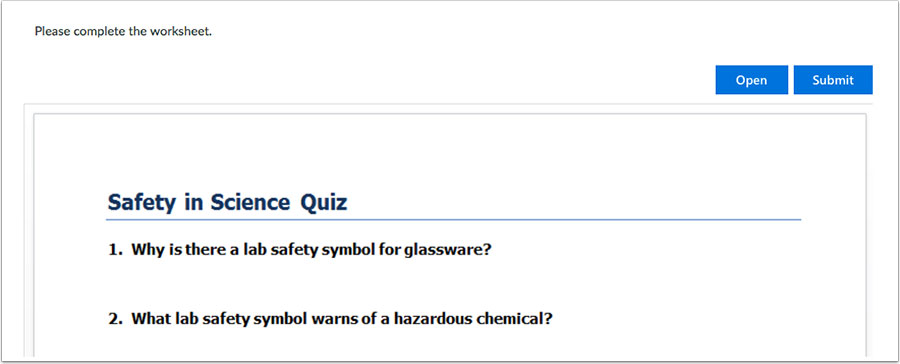
When students open the assignment, Office 365 creates a copy of the file in the student’s OneDrive folder for the course, which can be accessed via Microsoft Education → OneDrive → Office 365 files. Each student works on their own copy of the document according to the assignment instructions. Once students are ready to submit, they return to the Canvas assignment page and submit the assignment. Instructors can then view and grade each student’s document copy using SpeedGrader.
TThe second way to create an assignment using Microsoft Education tools is directly from the Assignments page in Canvas. From the Assignments page, click the three-dot (More Options) menu located in the upper-right corner of the screen, then select Microsoft Education from the menu. Using this option, instructors can create or attach cloud-based Microsoft files (such as Word, Excel, or PowerPoint) directly to an assignment. Students can open these files within Canvas, work on them online using Microsoft 365, and submit their completed work without needing to download or upload files manually.
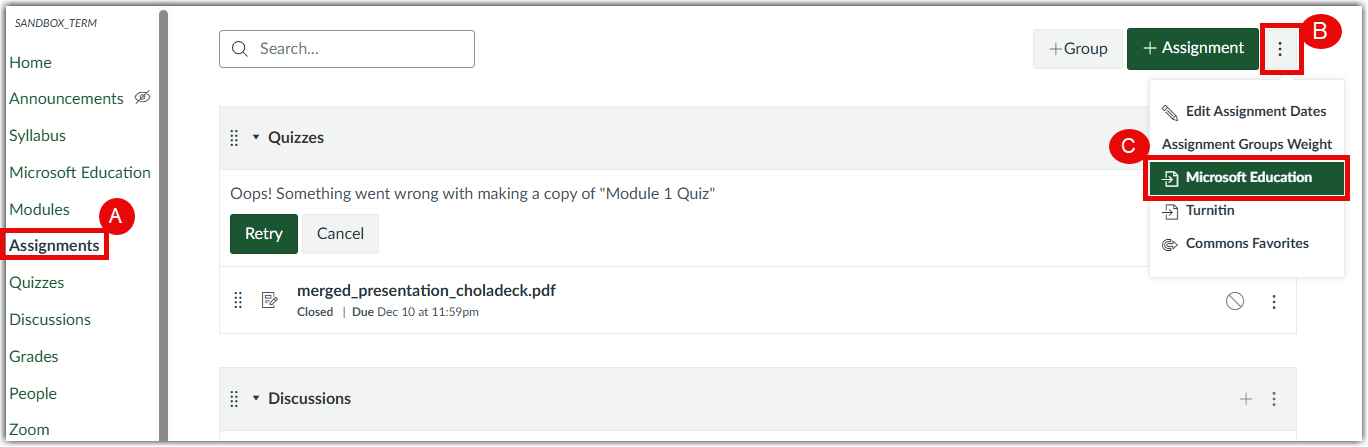
Both access methods provide seamless integration between Canvas and Microsoft Education, making it easy for students to collaborate, save progress automatically in the cloud, and submit assignments directly through Canvas.
File Upload Assignments
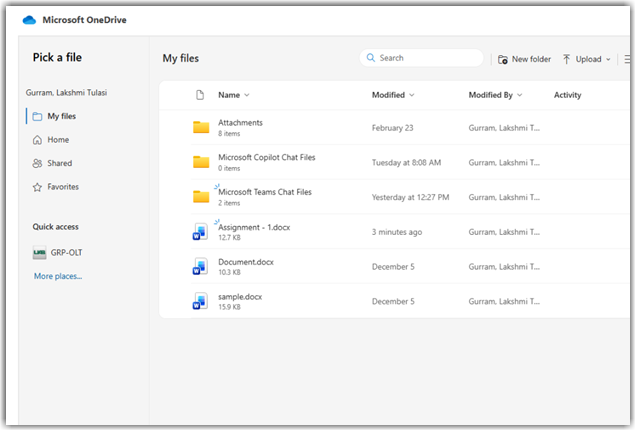
Instructors can also continue to create regular file upload assignments. When file uploads are allowed, students can select files directly from their Microsoft OneDrive using the file picker. Students will see their OneDrive folders and files (such as Word, PowerPoint, or Excel documents) and can choose a file to upload without needing to download it to their device.
Collaborations
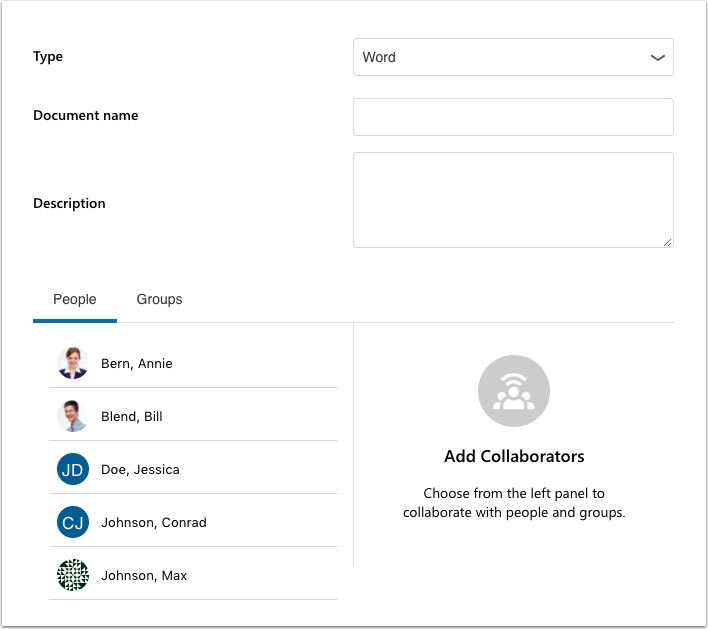
Users can create collaborative Microsoft Word, PowerPoint, or Excel documents. The document creator can add individual users or course groups to participate in the collaboration. Collaborators can be added or removed at any time. Once a user is added, the shared document appears in the user’s Microsoft OneDrive and remains accessible unless sharing permissions are changed or the document is removed.
Modules
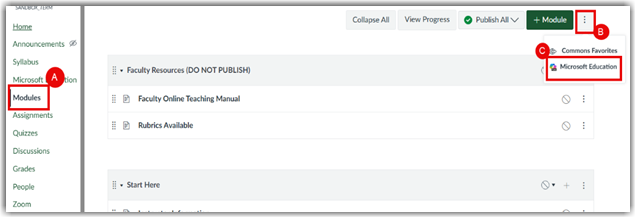
Instructors can also continue to create regular file upload assignments. When file uploads are allowed, students can select files directly from their Microsoft OneDrive using the file picker. Students will see their OneDrive folders and files (such as Word, PowerPoint, or Excel documents) and can choose a file to upload without needing to download it to their device.
Rich Content Editor
The Office 365 LTI (Microsoft Education) adds a OneDrive icon to the Canvas Rich Content Editor, allowing instructors and students to access files from their OneDrive and insert them as inline links. The icon is available anywhere the Rich Content Editor is used—such as pages, assignments, discussions, and announcements (as permitted)—and supports sharing and viewing cloud-based Microsoft documents directly within Canvas.