Accidentally removed an item or lost text while editing in Canvas? Canvas provides built-in options to help you recover lost items and revert page changes.
Tips
- The Canvas recovery tool only retains recently deleted items. Always attempt recovery as soon as possible after deletion.
- Restoring a deleted Discussion board recovers the prompt and topic structure, but student posts and replies submitted prior to deletion cannot be restored.
Note for users of screen readers: Letters in parentheses in the instructions below refer to corresponding areas on example images. If you have any questions about these instructions, contact the Office of Learning Technologies for assistance opens a new website.
Step 1: Restoring Deleted Items (Assignments, Discussions, Pages, Modules)
If you deleted an entire item from your course, you can access the hidden Canvas restore menu by modifying your browser's address bar.
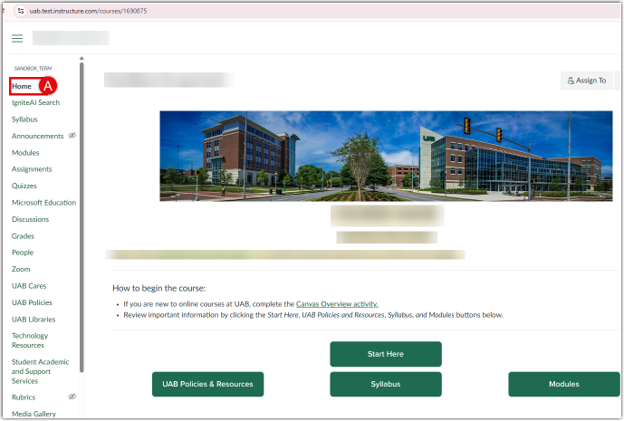
- Navigate to your course: Open the course where the item was deleted and ensure you are on the Home page (A).
- Modify the course URL: Click on your browser’s address bar at the top of the screen. Go to the very end of the web address, type
/undelete, and press Enter (or Return) (B).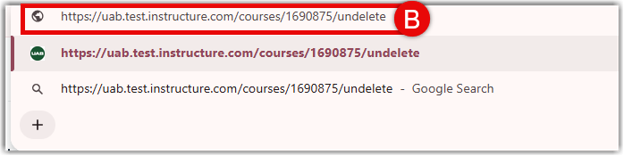
Example format: https://canvas.youruniversity.edu/courses/12345/undelete
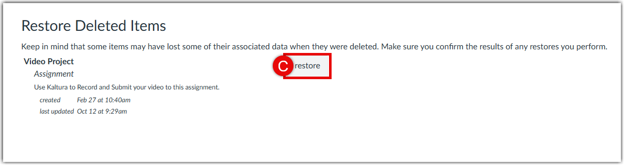
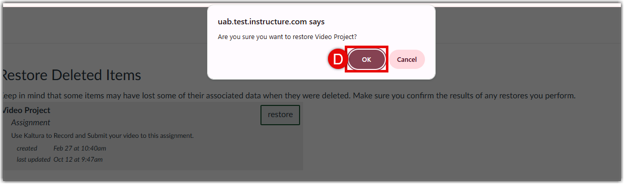
- Restore the item: Review the list of recoverable items displayed on the page. Locate the missing item and click the restore button next to it (C), then click OK to confirm (D).
Discussion Boards & Submissions
- Restoring a deleted Discussion board recovers the prompt and topic structure, but student posts and replies submitted prior to deletion cannot be restored.
Step 2: Recovering Text or Formatting Within a Page
If you accidentally deleted text while actively working inside a Canvas Page or Syllabus, choose one of the recovery options below.
Option One: The Undo Shortcut (Before Saving)
If you are still editing the page and have not clicked Save:
- Windows: Press Ctrl + Z
- Mac: Press Cmd + Z
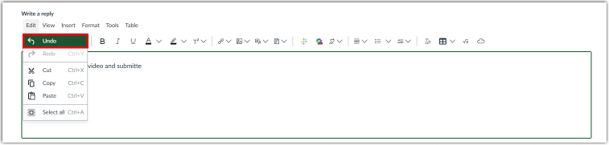
- Alternatively, click the Undo arrow icon in the Rich Content Editor toolbar under Edit menu.
Option Two: Page Version History (After Saving)
If you saved the page after making unwanted changes, you can revert to a previously saved version:
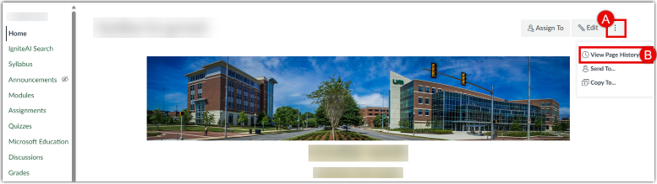
- Open the page and click the three vertical dots menu (A) in the upper-right corner, then select View Page History (B).
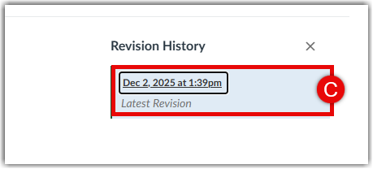
- Select a previous revision (C) from the right-hand panel to review past content.
- Click Restore this version to apply the update.
Please Note:
Not all Canvas features support page history. Page history is primarily available for Canvas Pages. If you lose unsaved content in other tools like Discussions or Quiz descriptions, try using the undo keyboard shortcuts prior to navigating away or saving.